


WordPress started out in 2003 as a simple blogging tool. More than two decades later, it's the most popular content management system in the world, powering over 40% of all websites, from personal blogs to large online stores and corporate sites.
A big reason WordPress is still relevant on the market is its plugin ecosystem. The core stays lean, and plugins fill the gaps, letting you add exactly what a site needs without building everything from scratch.
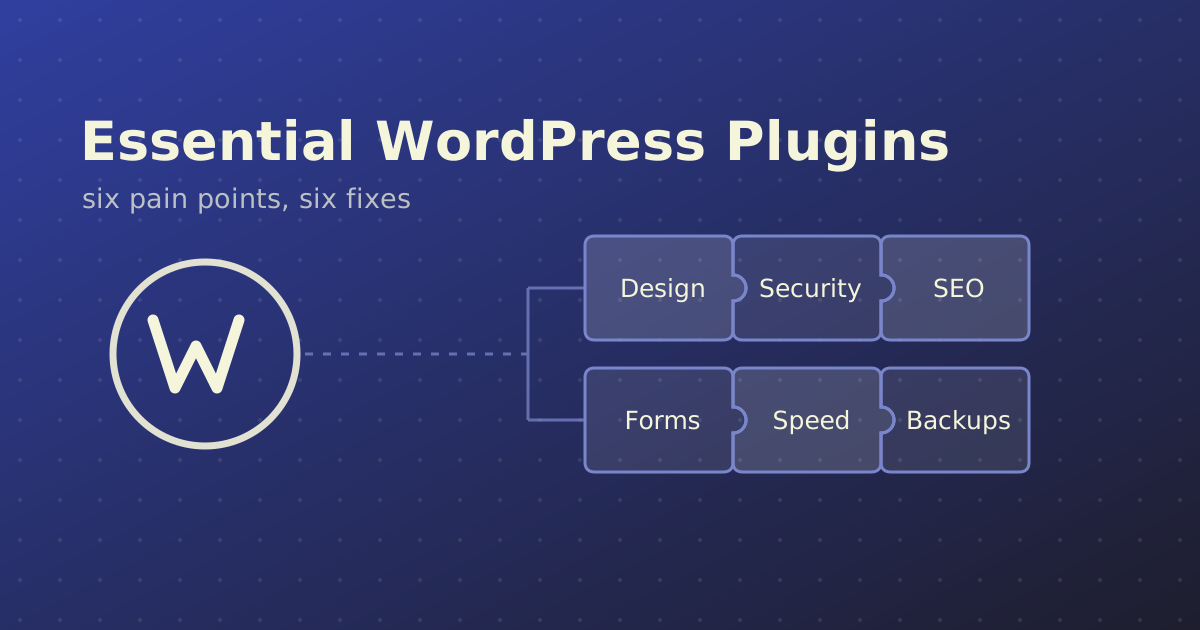
In this post I'll go through the common WordPress problems that almost every site faces and the essential WordPress plugins that help solve them. One thing to keep in mind: for every pain point there are multiple plugins that do the job. There's rarely a wrong answer, just a better one for your specific project.
Also, not every website has every pain point. A portfolio site doesn't need to worry about selling products, and a simple landing page doesn't need a complex membership system. The six areas below, though, apply to pretty much every WordPress website.
1. Website Design: Theme, Builder or Custom Code?
How you build the look of your site affects everything that comes after it: speed, flexibility, maintenance and cost. There are several routes you can take.
Gutenberg and block themes
The default WordPress block editor (Gutenberg), combined with a good block theme, has come a long way. For simple sites it's often enough, and it keeps the site light because you're not adding a heavy layer on top of WordPress.
Page builders: Elementor, Divi, Avada
Page builders like Elementor, Divi and Avada give you drag-and-drop design with a huge library of widgets. They're paired with compatible themes, and many come with ready-made templates.
Custom Gutenberg blocks and starter themes
For developers, there's a lot more control available. You can build custom Gutenberg blocks with React, giving editors reusable blocks that match the design exactly. On the theme side, Sage is a modern starter theme with a proper build process, and Timber is a templating library that lets you write theme templates in Twig, keeping PHP logic and markup cleanly separated.
Which WordPress design approach should you choose?
If the project has a dedicated design phase, for example a full design in Figma, a custom WordPress theme is the best choice. It gives you far more flexibility and full control over the code, and you only load what the site actually uses.
If time and budget are limited, page builders are the best option, especially combined with starter website templates, such as Envato templates or the template kits that already come with the builders. You can get a professional-looking site live quickly, at the cost of some performance and flexibility.
2. WordPress Security: Protect the Work You've Done
Without securing your website, the entire effort that went into building it can be for nothing. WordPress is the most popular CMS, which also makes it the most popular target for automated attacks. Most of these attacks aren't personal; bots scan thousands of sites looking for easy entry points.
WordPress security best practices
These are the basics every site should have covered:
- Strong credentials. Usernames and passwords should be generated, or at the very least long and made up of multiple character types. Avoid usernames like "admin" or the site name.
- A custom login URL. Move the login form away from the default
/wp-adminand/wp-login.php, which every bot knows about. - Disable XML-RPC. Unless you specifically need it (for example, for some mobile apps or older integrations), XML-RPC is mostly used today for brute-force attacks and should be turned off.
- Limit login attempts. Block repeated failed logins so bots can't guess passwords endlessly.
There are other hardening steps as well, like disabling the file editor in the dashboard and hiding the admin username. The good news is that most of those are already handled by the hosting provider if you choose a good managed WordPress hosting.
The best WordPress security plugins
Wordfence covers most of the work on its own: a firewall, malware scanning, login attempt limiting and two-factor authentication, all in the free version. To round it off, add a lightweight plugin to disable XML-RPC and one to change the login URL, such as WPS Hide Login. That combination handles the most common attack vectors with very little setup.
3. WordPress SEO and AI SEO
WordPress is often chosen specifically because it's SEO-friendly: clean permalinks, proper heading structure and easy content management. SEO plugins take that a step further, handling meta titles and descriptions, XML sitemaps, schema markup and content analysis.
Yoast SEO: the most popular choice
Yoast SEO is the most popular WordPress SEO plugin, and it's the go-to for most non-technical site owners thanks to its simple traffic-light content analysis. The free version does have some limitations, for example you can optimize for only one focus keyphrase per page, and features like the redirect manager and internal linking suggestions are reserved for the premium version. Alternatives like Rank Math and All in One SEO (AIOSEO) are also worth a look, especially if you need more features for free.
AI SEO and llms.txt
Search is changing. More and more people find information through AI assistants and AI-powered search, which makes AI SEO increasingly important. One emerging approach is adding llms.txt and llms-full.txt files to your site. These are plain-text files that give AI agents a clean, structured overview of your content (llms.txt) or the full content itself (llms-full.txt), without them having to parse your HTML.
It's worth noting that llms.txt is still a proposed standard, and major AI companies haven't officially confirmed they rely on it. Still, it's cheap to add and can help AI tools understand and surface your site.
Yoast's free version can now generate an llms.txt file for you. If you also need llms-full.txt, you'll have to add a dedicated llms.txt plugin on top of it.
4. Form Submissions: Contact Forms That Actually Deliver
Almost every website needs some kind of form, whether it's a contact form, a quote request or a newsletter signup. A plugin that handles forms well and integrates with mailing services is a no-brainer.
Why WordPress emails end up in spam (or never arrive)
By default, WordPress sends email using PHP's built-in mail function. The problem is that these emails often lack proper authentication, so they end up in spam or get rejected completely. You might not even notice until a client asks why they haven't received any inquiries in months.
The fix is to send emails through an external mailing service like Brevo or SendGrid, which handle authentication and deliverability properly. To route all of your site's emails through them, use an SMTP plugin such as WP Mail SMTP or FluentSMTP.
The best WordPress contact form plugins
Contact Form 7 is one of the most widely used form plugins, and it integrates with a range of services, including Brevo, reCAPTCHA, Cloudflare Turnstile and Stripe, with even more available through add-ons. Forminator is another strong free option with a friendlier visual interface.
Page builders usually include their own form widgets, and for simple use cases they work fine. However, they often lack the flexibility that dedicated plugins like CF7 and Forminator offer, such as conditional logic, advanced validation and integrations.
5. WordPress Speed Optimization
WordPress is a full CMS, and most websites don't use all the features and resources it loads by default. Add a page builder that loads its CSS and JavaScript on every page, even where they're not needed, and the bloat gets even bigger. Plugins do the same thing, just on a smaller scale. The result is a slower site, which hurts both user experience and search rankings.
Choosing a WordPress caching plugin
A caching plugin serves pre-built versions of your pages instead of generating them from scratch on every visit, which is one of the biggest speed wins available. Beyond caching, most of these plugins also minify and combine CSS and JavaScript, lazy-load images and more.
If your site is built with a custom theme, you usually don't need a premium plugin like WP Rocket. Free plugins can do the trick:
- LiteSpeed Cache is excellent and free, but its page caching only works on hosting that runs LiteSpeed or OpenLiteSpeed servers. Check with your host first.
- WP Fastest Cache is a solid free choice on any hosting, including Apache and Nginx servers.
Database optimization
Over time, the WordPress database fills up with post revisions, spam comments, expired transients and leftover data from plugins you uninstalled long ago. If your database has grown very large, a database optimization plugin like WP-Optimize or Advanced Database Cleaner can clean it up and make queries faster.
6. WordPress Backups: Your Safety Net
Mistakes happen. A plugin update breaks the layout, a theme change causes a fatal error, or something gets deleted by accident. Having a WordPress backup plugin that lets you restore a broken website quickly isn't optional; it's mandatory.
UpdraftPlus covers this very well in its free tier. You can schedule automatic backups of both files and the database, and send them to remote storage like Google Drive, Dropbox or Amazon S3.
A few tips to get the most out of your backups:
- Store backups off-server. A backup on the same server as the site won't help if the server itself fails.
- Back up before every update. Plugin and core updates are the most common cause of broken sites.
- Test a restore once. A backup you've never restored is a backup you can't be sure works.
Quick Overview: Pain Points and Plugin Options
| Pain point | Recommended options |
|---|---|
| Design | Gutenberg block themes, Elementor, Divi, Avada, custom blocks with React, Sage, Timber |
| Security | Wordfence, WPS Hide Login, a plugin to disable XML-RPC |
| SEO & AI SEO | Yoast SEO, Rank Math, AIOSEO, an llms.txt plugin |
| Forms | Contact Form 7, Forminator, WP Mail SMTP, FluentSMTP |
| Speed | LiteSpeed Cache, WP Fastest Cache, WP Rocket, WP-Optimize |
| Backups | UpdraftPlus |
Frequently Asked Questions
How many plugins should a WordPress site have?
There's no magic number. What matters is quality, not quantity. A few well-coded, actively maintained plugins are far better than a handful of abandoned ones. Every plugin you add is extra code to load and another potential security risk, so only install what you actually need.
Do I need a security plugin if my hosting already includes security?
Good managed WordPress hosting handles a lot at the server level, but a plugin like Wordfence adds protection at the application level, such as login limiting, two-factor authentication and malware scanning. The two work best together.
Is a free caching plugin enough?
For most sites, yes, especially well-built custom themes. Premium plugins like WP Rocket mainly add convenience and extra optimization options, which are most useful on heavier sites built with page builders.
Every Site Is Different
These six pain points apply to almost every WordPress website, but many sites also have their own unique challenges: online stores, membership sites, multilingual websites and more. I'll cover those in a future blog post, so stay tuned!