


Sooner or later every Elementor project runs into the same wall. You have designed the pages, the client is happy, and then you try to build the header once and use it everywhere — and Elementor free will not let you. Theme Builder, the feature that makes a header or footer apply site-wide, is Elementor Pro only.
That does not mean you are stuck. There are at least six ways around it, and they range from changing one setting to writing your own template files. Below they are ranked from easiest to hardest, with what each one actually costs you.
Why Elementor Free Cannot Do It
It helps to understand what is happening. Elementor free edits the content area of a single page: the part your theme drops between its header and its footer. The header and footer themselves come from the theme's header.php and footer.php, which Elementor free never touches.
Theme Builder is the Pro feature that takes over those template files and lets you replace them with an Elementor design, plus the display conditions that decide where each one appears. Without it, every route below is really just a different answer to the same question: how do I get my Elementor design into the theme's header and footer slots?
The Six Methods, Ranked
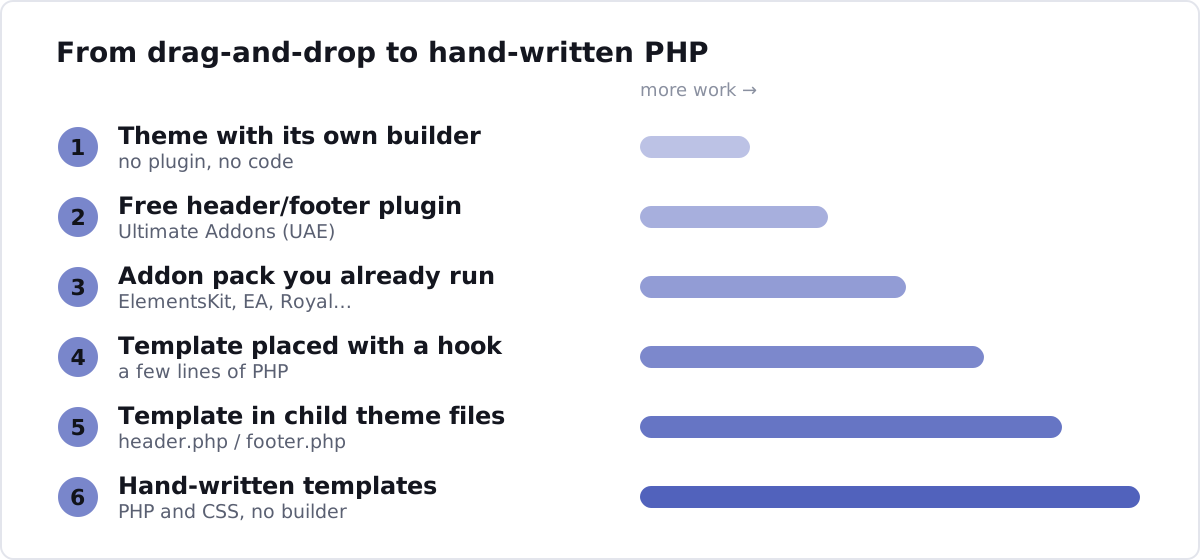
1. Use a theme that builds its own header and footer
Effort: lowest. Code: none. Extra plugins: none.
The simplest fix is not to solve it in Elementor at all. Several themes ship with their own header and footer builders, configured in the Customizer, and you keep using Elementor for page content exactly as before.
Astra, Blocksy, Kadence and OceanWP are the usual candidates. You get a header with rows, columns and widget slots, sticky behaviour, a mobile breakpoint and a separate mobile layout, without installing anything else.
One caution: check the current free/pro split before you commit. These themes move features between tiers over time, and a tutorial from two years ago may describe a free feature that now sits behind an upgrade. Install it on a staging copy and confirm the builder is there before you promise a client anything.
2. Install a free header and footer builder plugin
Effort: low. Code: none. Extra plugins: one.
If you are attached to your theme, add a plugin that supplies the missing slot. The best known one is Ultimate Addons for Elementor by Brainstorm Force, at over two million installs.
Watch the name here. This plugin launched as Elementor Header & Footer Builder, and most tutorials and forum answers still call it that. Brainstorm Force rebranded it to Ultimate Addons for Elementor (UAE) as it grew past headers and footers. The slug is unchanged, so header-footer-elementor still finds it, but if you search the plugin directory for the old name you may not recognise what comes back.
It builds headers and footers as Elementor templates, applies them with display rules and user-role conditions, and ships native support for Astra, Hello Elementor, OceanWP, GeneratePress, Blocksy, Neve and Kadence, with a fallback method for other themes.
3. Use the addon pack you already have
Effort: low. Code: none. Extra plugins: probably zero, if one is already installed.
Most of the large Elementor addon packs include a header and footer builder somewhere in their feature list. If you already run one of these for its widgets, turn the module on instead of adding another plugin:
- ElementsKit Elementor Addons by Roxnor
- Essential Addons for Elementor by WPDeveloper
- Royal Addons for Elementor by WP Royal
- HappyAddons for Elementor by Leevio
- Header Footer Builder for Elementor by Turbo Addons, if you want something smaller and more focused
These packs are big. Installing a 120-widget suite purely for a header is the wrong trade; every widget is code that loads, and the suite becomes another thing to keep updated. But if one is already in the stack, the module is free capability you are not using.
4. Place an Elementor template with a hook
Effort: medium. Code: a few lines. Extra plugins: none.
Here we leave the visual-only territory. Elementor free can still save a template — you just cannot assign it site-wide. So save your header as a template, note its ID, and inject it yourself with a WordPress hook.
// functions.php in a child theme
add_action( 'wp_body_open', function () {
    echo do_shortcode( '[elementor-template id="123"]' );
} );

add_action( 'wp_footer', function () {
    echo do_shortcode( '[elementor-template id="456"]' );
} );
Two things to know before you reach for this. wp_body_open fires right after the opening <body> tag, which in most themes is before the theme's own header markup — so you will usually end up hiding the theme header with CSS, which is untidy and leaves its markup in the page. And wp_footer fires near the closing </body>, below the theme footer, with the same problem in reverse.
It works, and it is quick, but you are stacking your header on top of someone else's rather than replacing it.
5. Render an Elementor template from your own template files
Effort: medium-high. Code: real PHP. Extra plugins: none.
The honest version of method 4. Create a child theme, copy header.php and footer.php into it, and render the Elementor template exactly where the theme's own markup used to be:
<?php // header.php in a child theme ?>
<!doctype html>
<html <?php language_attributes(); ?>>
<head>
    <?php wp_head(); ?>
</head>
<body <?php body_class(); ?>>
<?php wp_body_open(); ?>

<?php
// Render the Elementor template that holds the header.
if ( class_exists( '\Elementor\Plugin' ) ) {
    echo \Elementor\Plugin::$instance->frontend->get_builder_content_for_display( 123 );
}
?>
The theme's old header markup is gone rather than hidden, so there is no duplicate markup and no CSS fighting. The client still edits the header visually in Elementor, because it is still an Elementor template — you have only changed where it is printed.
The class_exists guard matters. If Elementor is ever deactivated, without it every page on the site fatals instead of simply losing its header.
6. Write header.php and footer.php by hand
Effort: highest. Code: all of it. Extra plugins: none.
Drop Elementor from the header entirely and build it as normal WordPress templates in a child theme: wp_nav_menu() for the navigation, the_custom_logo() for the logo, your own markup and your own CSS.
<header class="site-header">
    <?php the_custom_logo(); ?>
    <?php
    wp_nav_menu( [
        'theme_location' => 'primary',
        'container'      => 'nav',
    ] );
    ?>
</header>
This is the fastest-loading and most maintainable option by a distance, and the only one where the header carries no builder overhead at all. It is also the one the client cannot edit without you. Choose it when the header is genuinely fixed — a logo, a menu, maybe a phone number — and nobody is going to want to rearrange it next quarter.
Comparison
| # | Method | Effort | Code | Client can edit it | Extra plugin |
|---|---|---|---|---|---|
| 1 | Theme with its own builder | Lowest | None | Yes | No |
| 2 | Free header/footer plugin (UAE) | Low | None | Yes | Yes |
| 3 | Addon pack you already run | Low | None | Yes | Already there |
| 4 | Template placed with a hook | Medium | A few lines | Yes | No |
| 5 | Template rendered in child theme files | Medium-high | PHP | Yes | No |
| 6 | Hand-written header.php / footer.php | Highest | PHP + CSS | No | No |
| — | Elementor Pro Theme Builder | Lowest | None | Yes | Paid licence |
Which One Should You Actually Pick?
The deciding question is rarely technical. It is who edits the header after launch.
- The client edits it themselves — methods 1, 2 or 3. Keep it visual.
- You maintain the site — method 5 gives you clean templates while leaving the design in Elementor.
- The header never changes — method 6. Do not carry builder overhead on every page load for markup nobody will touch.
- You are building several sites a year — buy Elementor Pro. At a handful of projects the licence costs less than the hours you will spend working around it, and Theme Builder also covers single-post templates, archives and WooCommerce layouts that none of the free routes touch.
Method 4 is the one I would avoid unless you are in a hurry. It leaves the theme's header in the markup and papers over it with CSS, and someone — possibly you, in a year — has to work out why there are two headers in the page source.
Frequently Asked Questions
Can you make a global header in Elementor free at all?
Not through Elementor's own interface. Theme Builder, which assigns a header or footer site-wide, is a Pro feature. You can still design the header as an Elementor template in the free version — what you need is another way to print that template in the theme's header slot, which is what all six methods above do.
Is Ultimate Addons for Elementor the same as Elementor Header & Footer Builder?
Yes. The plugin launched as Elementor Header & Footer Builder and was rebranded by Brainstorm Force to Ultimate Addons for Elementor as its scope grew. The directory slug is still header-footer-elementor, so old links and install commands keep working, but the name you see in the plugin directory has changed.
Will a header and footer plugin slow my site down?
A dedicated header and footer builder adds very little. The risk is installing a 120-widget addon suite purely to get the header module, because the whole suite then loads and has to be maintained. If you only need the header, use a focused plugin or one of the code-based methods.
Do I need a child theme for the code methods?
Yes, for methods 5 and 6. Editing header.php or footer.php in the parent theme means your work is overwritten the next time the theme updates. Method 4 also belongs in a child theme's functions.php, or in a small site-specific plugin.
What happens to my header if Elementor is deactivated?
With methods 4 and 5 the header disappears, because the markup lives in an Elementor template. Guarding the call with class_exists( '\Elementor\Plugin' ) means the site loses its header rather than throwing a fatal error on every page. Method 6 is unaffected, since it does not depend on Elementor at all.
One Last Thing
Whichever route you take, check the plugin's current name and its free-versus-pro split before you promise anything. The Ultimate Addons rename is a good reminder: the ecosystem moves, tutorials go stale, and a feature that was free when a blog post was written may not be free today.
If you would rather not work any of this out yourself, building and maintaining WordPress sites is what I do.